

Control the stream from Apple Watch
StreamCam on Apple Watch is a remote for StreamCam on your iPhone. It is free.
What you need
Section titled “What you need”- An Apple Watch with watchOS 26, paired with the iPhone that runs StreamCam.
- StreamCam open on the iPhone’s screen. The Watch can’t start a stream while the iPhone app is in the background.
Start and stop
Section titled “Start and stop”- Open StreamCam on your Apple Watch.
- When it shows Ready, tap Go Live.
- To end the stream, tap Stop, then confirm with Stop Stream.
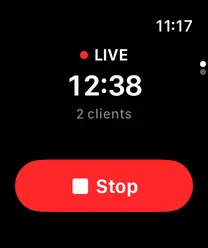
While you are live, the Watch shows how long you have been live and how many clients are connected. If the stream is struggling, it says so there too.
Alerts
Section titled “Alerts”The Watch taps your wrist when something goes wrong while you are live, for example when:
- no app is receiving the stream (No Client),
- an app has trouble playing it, or StreamCam lowers the quality to keep it smooth,
- your iPhone loses its Wi-Fi or Personal Hotspot connection (Network Lost),
- StreamCam leaves the screen on your iPhone and the stream pauses,
- another app takes over the camera,
- your iPhone can’t keep up,
- the StreamCam source in OBS is missing or out of date (OBS Needs Updating),
- another app on your iPhone is using the RTSP port (RTSP Port in Use),
- with the free version, a second app tries to connect (Client Limit Reached),
- the stream fails.
Each alert says what happened. After you stop, the stream summary on your iPhone offers the fix.
Tap an alert to see all alerts.
With the Watch app closed, alerts arrive as notifications. To allow them, open the Watch app on your iPhone and go to Notifications › StreamCam.
On your watch face
Section titled “On your watch face”Add the StreamCam complication to a watch face, or the StreamCam widget to the Smart Stack, to see whether you are live. Tap it to open the app.
When you can’t go live
Section titled “When you can’t go live”| The Watch shows | What to do |
|---|---|
| StreamCam Closed | Open StreamCam on your iPhone. |
| iPhone Not Reachable | Keep your iPhone nearby with Bluetooth on. |
| Update Needed | Update StreamCam on your iPhone and Watch. |
| Can’t Go Live | The Watch says why: camera access, the camera, or the network on your iPhone. Fix it there. |
| Stream Failed | Check StreamCam on your iPhone. |
StreamCam
Built solo. © 2026 Skwiggs