

Stream settings
Picture
Section titled “Picture”In Settings › Picture.
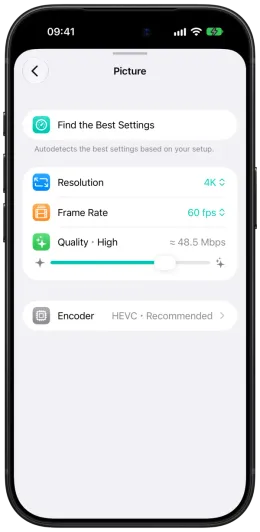
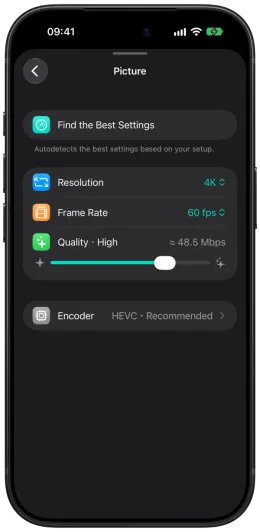
| Setting | Options |
|---|---|
| Resolution | 720p, 1080p, 1440p, 4K |
| Frame rate | 24, 30, 60, 120 fps |
| Quality | Low, Medium, High, Max |
StreamCam only offers the resolutions and frame rates your device’s camera supports. Higher quality sends more data; the app shows an estimate next to the slider.
Find the Best Settings tests the connection to your app and picks the sharpest settings that play smoothly. See Set up StreamCam.
Encoder
Section titled “Encoder”In Settings › Picture › Encoder. Everything except the codec needs StreamCam Pro. Reset to Recommended puts the Pro settings back to their recommended values.
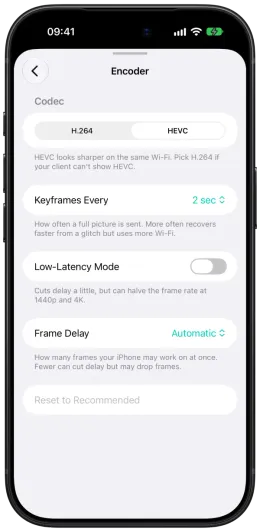
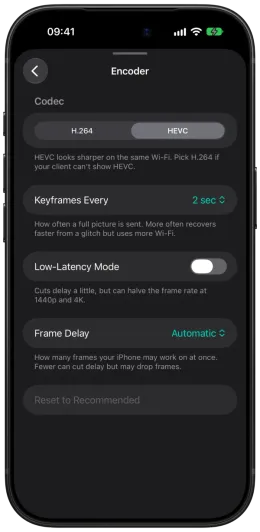
| Setting | Options | Default |
|---|---|---|
| Codec | H.264, HEVC | H.264 |
| Keyframes Every | 100 ms to 5 sec | 2 sec |
| Low-Latency Mode | On, Off | Off |
| Entropy Coding (H.264 only) | CABAC, CAVLC | CABAC |
| Frame Delay | Automatic, 0, 1, 2 | Automatic |
- Codec: HEVC looks sharper on the same Wi‑Fi. Pick H.264 if your app can’t show HEVC: Firefox can’t, and OBS on Windows needs the HEVC Video Extensions from the Microsoft Store.
- Keyframes Every is how often a full picture is sent. More often recovers faster from a glitch but uses more Wi‑Fi.
- Low-Latency Mode cuts delay a little, but can halve the frame rate at 1440p and 4K.
- Entropy Coding: CABAC makes H.264 smaller. CAVLC is lighter on your iPhone.
- Frame Delay is how many frames your iPhone may work on at once. Fewer can cut delay but may drop frames.
Set Up Streaming gives you each link, with your iPhone’s own address in place of <address>. Tap Copy Link on its page.
| For | Link |
|---|---|
| Web Page: a browser source or a web browser | http://<address>:8080 |
| Media Source: OBS Media Source, VLC and other players | http://<address>:8080/stream.ts |
| RTSP: security camera and home automation apps | rtsp://<address>:8554/live |
StreamCam serves all three links whenever it’s open. To change the RTSP port, go to Settings › Connection › RTSP: any port from 1024 to 65535 except 8080 works. If another app on your iPhone is using the port, that page and the RTSP page of Set Up Streaming say so, and you can pick another port there. The other two links keep working.
Browser options
Section titled “Browser options”Add these to the end of the Web Page link, for example http://<address>:8080/?fit=cover. Join several with &.
| Option | Effect |
|---|---|
fit=cover |
Fills the frame instead of letterboxing. |
bg=RRGGBB |
Colours the bars around the picture. They are transparent otherwise, so OBS shows your scene behind them. |
debug=1 |
Shows a technical overlay for troubleshooting. Browser Debug Overlay in Settings › Connection does the same. |
Free and Pro
Section titled “Free and Pro”| Free | Pro | |
|---|---|---|
| Resolution | 720p | Up to 4K |
| Frame rate | 24, 30 fps | Up to 120 fps |
| Quality | Low | Up to Max |
| Apps at once | One | Unlimited |
| Codec | H.264, HEVC | H.264, HEVC |
| Encoder settings | Recommended values | Adjustable |
| RTSP server | Yes | Yes |
| Apple Watch app | Yes | Yes |

StreamCam
Built solo. © 2026 Skwiggs