

Troubleshooting
Nothing connects
Section titled “Nothing connects”If Set Up Streaming shows Nothing connected yet, your app hasn’t reached StreamCam.
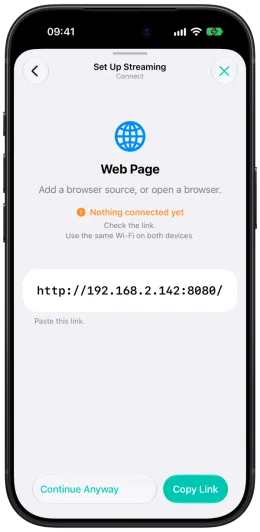
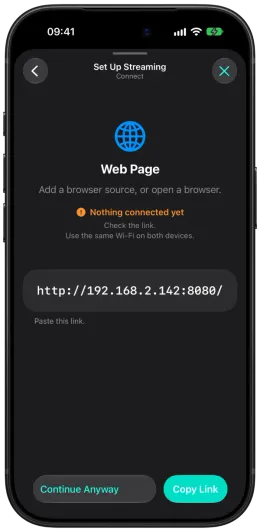
- Check that you pasted the whole link into your app.
- Your iPhone and computer need to be on the same network: the same Wi‑Fi, or the computer connected to the iPhone’s Personal Hotspot. Guest networks often stop devices from seeing each other.
- If StreamCam shows No Wi-Fi or Hotspot, join a Wi‑Fi network or turn on Personal Hotspot.
- If your iPhone moved to another network, its address changed. Open Set Up Streaming again and use the new link. If StreamCam set up OBS for you, it tells you when the source needs updating.
- Keep StreamCam open on screen. The stream pauses when you leave the app and resumes when you come back.
No client while live
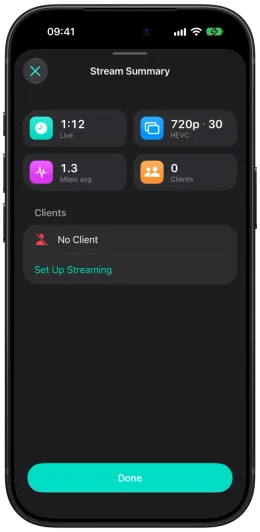
Section titled “No client while live”When you’re live but no app is receiving the picture, the top of the screen shows No Client.
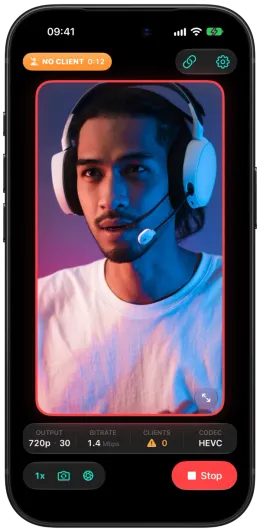
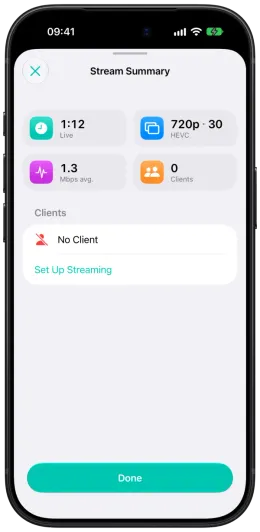
Check that your app is open and showing StreamCam’s source, then work through Nothing connects. After you stop, the stream summary lists what went wrong, each with a button that fixes it: Set Up Streaming here.
Black screen or choppy video
Section titled “Black screen or choppy video”- Use OBS 28 or later. Keep browser source hardware acceleration on in OBS’s settings. If you added the Browser Source yourself and stream above 30 fps, turn on its custom frame rate and set it to match.
- If you chose HEVC, check that your app can play it: Firefox can’t, and OBS on Windows needs the HEVC Video Extensions from the Microsoft Store. Switch to H.264 if in doubt.
- Chrome and OBS play the stream more smoothly than Safari.
- Run Find the Best Settings in Settings › Picture. It picks settings your app plays smoothly. It needs StreamCam ready, not live, and open in a browser source or web browser.
- To fill the frame instead of letterboxing, add
?fit=coverto the end of the link. Stream settings lists the other options.
Only one app plays the stream
Section titled “Only one app plays the stream”The free version streams to one app at a time.
- When a second web page opens the stream, it takes over, and the first one pauses and says where StreamCam is playing. Reload a page to play there instead.
- A media player or RTSP app can’t connect while another app is playing.
- After the stream, the summary shows Client Limit Reached.
StreamCam Pro streams to every app at once.
OBS setup can’t connect
Section titled “OBS setup can’t connect”| StreamCam shows | What to do |
|---|---|
| Can’t Reach OBS | Check that OBS is open with its WebSocket server on, and that your computer is on the same network as your iPhone. |
| Wrong Password | Scan the QR code again, or check the password under Show Connect Info in OBS. |
| OBS Needs an Update | Update to OBS 28 or later. |
| Local Network Access Is Off | Tap Open Settings and allow Local Network access for StreamCam, then try again. |
| No Wi-Fi or Hotspot | Join the same Wi‑Fi as your computer, or connect your computer to your iPhone’s Personal Hotspot. |
| Lost the Connection to OBS | Nothing was changed. Check that OBS is still open, then try again. |
| OBS Wasn’t Changed | StreamCam undid its changes. Try again. |
| Setup Didn’t Finish | Check OBS for a StreamCam source or scene, delete it, then set up OBS again. |
Apple Watch
Section titled “Apple Watch”Control the stream from Apple Watch lists what each message on the Watch means and what to do.
Get help
Section titled “Get help”Email [email protected], or ask in the StreamCam Discord.
StreamCam
Built solo. © 2026 Skwiggs